
You’ve set up your Google Business Profile, you search for what you do, and your business is nowhere to be seen on Google Maps. It’s one of the most frustrating problems in local marketing, and one of the most common questions we’re asked.
The answer is almost always one of a handful of causes. This guide explains each one, how to check for it and how to fix it, using Google’s own guidance as checked in October 2026.
The Short Answer
Your business usually isn’t showing on Google Maps for one of five reasons: the profile isn’t verified, it has been suspended, it’s been marked as a duplicate, it’s set up in a way Google doesn’t understand (such as the wrong category or a hidden address with no service area), or it is showing but is outranked by businesses that are closer to the searcher or better known. Work through the checks below in order.
Check 1: Is Your Profile Verified?
An unverified profile won’t show reliably on Google Maps. Sign in to your Business Profile and look for a message asking you to verify.
If you’ve recently verified, give it time. Google says its review of verification can take up to five business days, and edits to your address can take a while to appear. While a verification is pending, avoid editing your business name, address or category, because changes can send the profile back for review.
Check 2: Has Your Profile Been Suspended?
If your profile has been suspended or disabled, the public can’t see it at all. You’ll usually see a warning when you sign in. Google also explains that if the Google account you use is restricted, every profile it manages is suspended with it.
The fix is to appeal through Google’s appeals tool with evidence that matches your profile, such as a business registration document, a licence or a utility bill showing the same name and address. Google says decisions take up to five working days. Google discourages submitting more than one appeal for the same issue, and you shouldn’t create a new profile while you wait.
A suspension usually traces back to a rule that was broken at setup, such as keywords in the business name or an ineligible address.
Check 3: Do You Have a Duplicate Profile?
If Google decides your profile duplicates another one, it won’t show on Search or Maps. This often happens when an old listing exists from a previous owner or a web designer, when two businesses share an address, or when someone has created separate profiles for different services.
Search Maps for your business name, your phone number and your address. If you find a second listing, you can ask Google to remove it, merge it, or request access to it from whoever owns it.
Check 4: Is Your Address or Service Area Set Up Correctly?
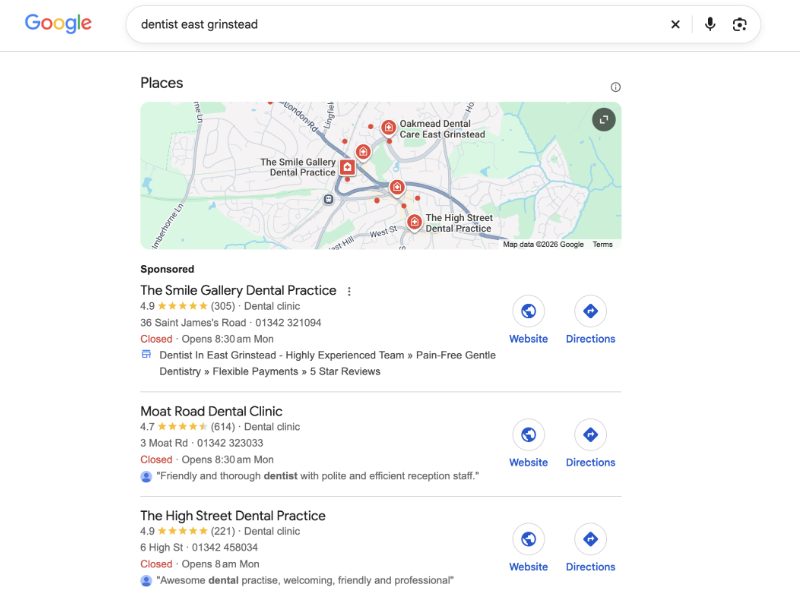
This is the cause we see most, and we’ve been caught out by it ourselves. Mouthy Marketing works with clients across the UK, and we don’t show a street address on our profile. For a while, our own map pack listing showed us as being in Yorkshire, nowhere near our base in East Grinstead.
Google’s help pages explain what is going on. If you hide your address, your profile shows your service area instead. If you don’t set a service area, Google assigns a default one. Either way, Google needs clear information about where you work, or it will make its own decision.
To check yours:
- If customers visit you, make sure your full address is showing and the map pin sits on your building. If the pin is wrong, edit your location and drag it to the right place.
- If you travel to customers, make sure you have hidden your address and listed the towns or areas you cover, within about two hours’ drive of your base.
- Make sure the address on your website and directory listings matches your profile exactly.
Check 5: Are You Showing, but Not Where You Expect?
Sometimes the profile is fine, and the problem is ranking. Google ranks local results on three things:
- Relevance: how well your profile matches what someone searched for.
- Distance: how far you are from the searcher, or from the location they searched for.
- Prominence: how well known your business is, including the number and quality of your reviews and the links to your website.
Distance is the one that surprises people. You may appear first when you search from your office, but drop out of the map pack a few miles away, where other businesses are closer to the searcher. It doesn’t mean your profile is broken.
Google is clear that you can’t pay for a better local ranking. You can improve relevance with the right categories and a complete profile, and improve prominence with reviews, links and an active profile. Our guide to how to rank higher on Google covers this in detail, and you can learn how to check where your business ranks on Google Maps across your whole area, not just from your own desk.
Why You Shouldn’t Judge by Searching Yourself
Google personalises results based on your location, the device you use, your search history and whether you’re signed in. If you search for your own business from your own office, you’re seeing a version of the results that your customers won’t see. A ranking tool that checks from many points across your area gives a much fairer picture.
A Quick Checklist
- Your profile is verified.
- There are no suspension warnings when you sign in.
- There’s only one profile for your business.
- Your address and map pin are correct, or your service area is set.
- Your business name contains no keywords.
- Your primary category describes your core business.
- Your website, profile and directory listings show the same name, address and phone number.
Missing From Maps Usually Means Missing From AI Answers Too
When someone asks Google’s AI Mode or ChatGPT to recommend a local business, the answer is built from information the tool can find and trust. Google’s guidance on its AI features specifically advises keeping your Business Profile information current. If your profile is unverified, suspended or showing in the wrong place, AI tools have less reliable information about you. The same fixes that get you back on Maps also help you appear in AI answers. Our guide to how to appear in AI search covers the extra steps.
Still Not Showing?
If you’ve worked through every check and your business still isn’t appearing, we can find out why. Fixing profiles that don’t show up is part of our local SEO services for small businesses.
If you haven’t set your profile up yet, start with our step-by-step guide to getting your business on Google and Google Maps.
Sources
- Google Business Profile Help: How to improve your local ranking
- Google Business Profile Help: Duplicate profiles
- Google Business Profile Help: Suspended profiles
- Google Business Profile Help: Appeals
- Google Business Profile Help: Edit your business address
- Google Business Profile Help: Verify your business
- Google Search Help: Why results vary
- Google Search Central: AI features and your website