
If someone searches for what you do and your business doesn’t appear on Google or Google Maps, you’re invisible to the customers who are most ready to buy. The good news is that getting listed is free, and most small businesses can do it in an afternoon. The bad news is that a lot of businesses rush it, make a few avoidable mistakes, and then wonder why they never show up.
This guide walks you through getting your business on Google and Google Maps properly, step by step. It’s based on Google’s own rules, which were last checked in October 2026, and on what we see when we set profiles up for small businesses.
The Short Answer
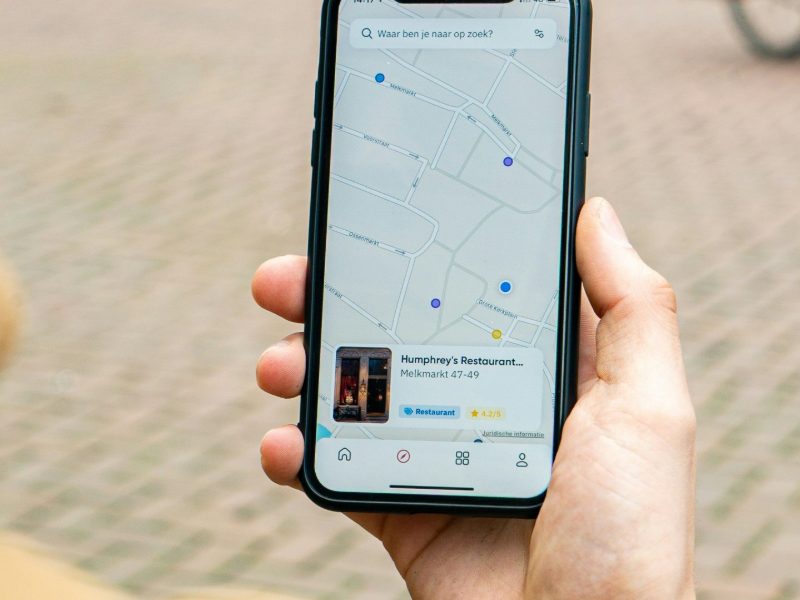
To get your business on Google and Google Maps, you create a free Google Business Profile at business.google.com/add, enter your business details, and verify that you are the owner. Once Google has verified your profile, your business can appear in Google Search, in the map pack and in Google Maps. One profile covers all three.
What Is a Google Business Profile?
A Google Business Profile is the free listing that shows your business name, address or service area, phone number, opening hours, reviews, photos and a link to your website. It’s what appears when someone searches for your business by name, and it’s what Google uses to decide whether to show you in the map pack, the group of local businesses with a map that appears for searches like “electrician near me”.
You may still hear it called Google My Business. Google renamed it Google Business Profile some years ago, so if a guide still uses the old name, check how old its advice is.
Before You Start: Check You’re Eligible
Google has clear rules about who can have a profile, and getting this wrong is one of the most common reasons profiles get suspended later. According to Google’s Business Profile guidelines:
- Your business must either have a location customers can visit, or travel to customers to deliver its service.
- Virtual offices and PO boxes are not eligible. A rented mailing address you don’t work from will not qualify.
- Co-working spaces only qualify if you have clear signage there, receive customers there and have your own staff there during business hours.
- If you have premises, you need permanent signage at the address.
- If you work from home and visit customers, you can still have a profile, but you should hide your home address and show a service area instead.
If your address isn’t eligible, fix that before you create the profile, not after Google suspends it.
How to Get Your Business on Google, Step by Step
Step 1: Check Whether a Profile Already Exists
Search Google Maps for your business name. There may already be a listing for your business, perhaps set up years ago by a previous owner, a web designer or a member of staff. If you find one, click “Claim this business” and then “Manage now” rather than creating a second profile. Duplicate profiles are against Google’s rules and can stop either listing from showing.
If someone else has already verified the profile, you can request ownership through Google. The current owner then has a short window to respond.
Step 2: Create Your Profile
Go to business.google.com/add and sign in with a Google account. We recommend using a business account that you control, rather than a personal account or one belonging to your web designer. If they leave, you don’t want to lose access to your profile.
Google will then ask for your details in turn.
Step 3: Enter Your Business Name Exactly as Customers See It
Use your business name as it appears on your signage, stationery and website. Google’s guidelines say you must not add keywords, locations, taglines, phone numbers or website addresses to the name.
For example, “Horsham Dog Grooming” is fine if that is your trading name. “Paws Grooming | Best Dog Groomer Horsham” is not. Adding keywords might look like a quick win, but it breaks the rules, and a competitor can report it.
Step 4: Choose the Right Primary Category
Your primary category tells Google what your business is. It’s one of the strongest signals for the map pack, so choose carefully. Google’s advice is to think “this business IS a”, not “this business HAS a”. A café inside a garden centre is a garden centre that has a café.
Pick the most specific category that describes your core business, then add a small number of secondary categories for your other main services. Don’t add categories as keywords for things you only do occasionally.
A good test is to look at your website. Your primary category should match what your home page is about, and your secondary categories should match your main service pages. When your profile and website tell Google the same story, Google can be more confident about when to show you.
Step 5: Add Your Address or Service Area
If customers visit you, add your full address and check that the pin on the map sits on your building. If it doesn’t, you can drag the pin to the right spot.
If you travel to customers, choose to hide your address and list the towns or areas you cover. Google says your service area should not extend further than about two hours’ drive from your base.
Step 6: Add Your Phone Number and Website
Use a local phone number that you control and answer. Google’s guidelines ask businesses to use a local number instead of a central call-centre helpline wherever possible. Add your website address too. If you don’t have a website, you can still have a profile, but a website gives Google far more to work with.
Step 7: Verify Your Business
Verification proves to Google that you run the business at that address or in that area. Google chooses the verification method for you, and you can’t change it. It bases the choice on your business type, the information available about you, your region and your opening hours. The options include:
- a phone call or text message;
- email;
- a live video call with Google support;
- a recorded video;
- a postcard with a code, sent to your address.
Google says its review can take up to five business days. If you’re sent a postcard, most arrive within 14 days and the code expires after 30 days. While you wait, don’t edit your business name, address or category, and don’t request a new code, because both can slow things down.
What a Video Verification Involves
Recorded video verification is now common for small businesses, and it’s the step that catches people out. Google asks for one continuous, unedited recording of at least 30 seconds, recorded live on your phone. It needs to show:
- where you are, such as street signs, your building number or nearby businesses;
- your permanent signage, with a name that exactly matches your profile;
- proof you run the business, such as unlocking your premises, opening the till, or showing your branded van and tools if you travel to customers.
Don’t film other people’s faces or anything sensitive, such as bank details. If you’re a service-area business without a shopfront, a branded vehicle and your equipment are often the easiest way to show that you run the business.
Step 8: Complete the Rest of Your Profile
Once you’re verified, finish the profile. Google says complete, accurate information helps you appear for relevant searches. Add:
- your opening hours, including holiday hours;
- a description of what you do and where, written for customers;
- your services or products;
- photos of your work, your team and your premises;
- the attributes that apply to you, such as wheelchair access.
Common Mistakes We See
When we take on a new local SEO client, the same problems come up again and again. These are the ones we check first.
- Keywords in the business name. It breaks Google’s rules and puts the profile at risk.
- Too many categories, or the wrong primary category. A vague category means Google isn’t sure when to show you.
- A virtual office address. It isn’t eligible and can lead to suspension.
- Duplicate profiles. An old listing nobody can access sits alongside the new one, and neither performs well.
- The profile belongs to someone else. A former employee or web designer set it up on their own account.
- Details that don’t match the website. A different phone number or business name on your website, profile and directories makes Google less confident.
- An empty profile. No photos, no description and no reviews. Verification is the start, not the finish line.
Getting listed takes an afternoon. Getting chosen by customers takes a complete, active profile.
How Long Until You Appear?
Once you’re verified, your profile can appear for searches of your business name quite quickly. Appearing in the map pack for searches like “plumber in Crawley” is a different question. Google ranks local results on three things: relevance (how well you match the search), distance (how close you are to the searcher) and prominence (how well known you are, including reviews and links to your website). Google is clear that you can’t pay for a better local ranking.
If your verified profile still isn’t showing, our guide to why your business isn’t showing on Google Maps covers the usual causes and fixes.
After You’re Listed: The Next Steps
Getting on Google is step one. To start appearing for the searches that bring in customers, focus on these next:
- Ask every happy customer for a review. Google allows you to share your review link or a QR code. It doesn’t allow incentives, and UK law has banned fake reviews since April 2025.
- Reply to your reviews. Our guide to how to respond to Google reviews explains how.
- Keep the profile active with new photos and posts about your work.
- Make sure your website backs your profile up, with a clear page for each main service.
Your Profile and AI Search
Your Google Business Profile doesn’t only feed Google Maps. Google’s AI Overviews and AI Mode now answer many local questions directly, and Google’s own guidance on its AI features advises businesses to keep their Business Profile information current. Other AI tools, such as ChatGPT and Copilot, also draw on public information about local businesses when they make recommendations.
This is fast becoming a common way to find a business. BrightLocal’s 2026 Local Consumer Review Survey of US consumers found that 45% had used ChatGPT or a similar AI tool for local business recommendations, up from 6% the year before. A complete, accurate profile that matches your website gives these tools consistent information to work with. Our guide to how to appear in AI search explains what else helps.
Frequently Asked Questions
Is it free to put my business on Google?
Yes. Creating and managing a Google Business Profile is free. You only pay if you choose to advertise.
Can I list a business I run from home?
Yes, if you travel to customers. Hide your address during setup and show the areas you serve instead.
Can I choose to verify by postcard?
No. Google chooses the verification method based on your business and you can’t change it.
Do I need a website to be on Google Maps?
No, but it helps. A website gives Google more information about what you do and where, and gives customers somewhere to learn more before they call.
Someone else has already claimed my business. What do I do?
Request ownership through Google. If the current owner doesn’t respond, Google gives you further options to prove you run the business.
Want Us to Set It Up for You?
If you’d rather spend your afternoon running your business, we set up, fix and optimise Google Business Profiles as part of our local SEO services for small businesses. We’ll make sure your profile follows Google’s rules, matches your website and is ready to compete.
Sources
- Google Business Profile Help: Add or claim your Business Profile
- Google Business Profile Help: Verify your business
- Google Business Profile Help: Verify with a video recording
- Google Business Profile guidelines
- Google Business Profile Help: Edit your business address
- Google Business Profile Help: How to improve your local ranking
- Google Search Central: AI features and your website
- BrightLocal: Local Consumer Review Survey 2026